
Fixing Sound Issues in Windows 10: 6 Solutions You Can Try
If you’ve encountered a situation where your new Windows 10 installation is unresponsive or has no sound, don’t worry—there’s always a solution. Sound issues in Windows 10 are common, but you can resolve them quickly. Here are six effective ways to fix your sound problems.
1.Run the Troubleshooter
Windows 10 has a built-in troubleshooter that can automatically detect and fix many sound-related issues. To run the troubleshooter:
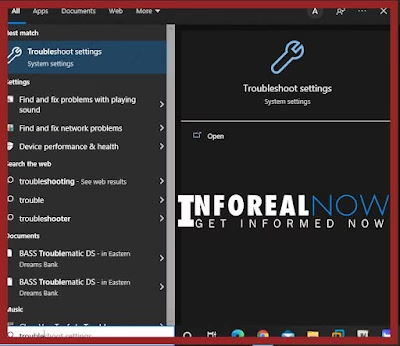
- Press Windows Key + S to open the search bar.
- Type troubleshooting and click on the search result.
- Select Play Audio Files and click Run the troubleshooter.
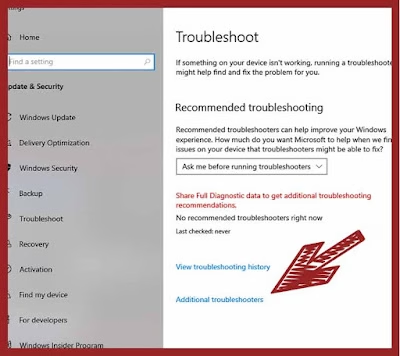
- Follow the on-screen instructions to allow Windows to detect and resolve the issue.
Once the process is complete, restart your computer and check if the sound problem is resolved.
2. Update Your Audio Driver
If running the troubleshooter didn’t solve the issue, updating your audio driver could help. To update the driver:
- Press Windows Key + X and select Device Manager.
- Expand Sound, video, and game controllers.
- Right-click your audio device and select Update Driver.
- Follow the prompts to update the driver.
You can also visit the manufacturer’s website to manually download the latest driver for your device.
3. Check Hardware Volume
Sometimes, the solution is simple—check your device’s hardware volume settings. Ensure that your device isn’t muted or set too low. This simple step might fix the issue.
4. Install the Original Audio Driver
If the problem persists, try installing the original audio driver for your device. Here’s how:
- Press Windows Key + R to open the Run dialog.
- Type devmgmt.msc and press Enter.
- Expand Sound, video, and game controllers.
- Right-click your sound card and select Uninstall device.
- Tick Delete the driver software for this device, then click Uninstall.
- Restart your PC. Windows will automatically reinstall the audio driver.
5. Check Audio Output Settings
Ensure that the correct audio output device is selected. Sometimes, Windows might be sending audio to the wrong device, like a Bluetooth speaker that’s turned off. To check:
- Right-click the sound icon in the taskbar.
- Select Playback devices.
- Choose the correct device and make sure it is set as the default.
6. Check for Windows Updates
Make sure your system is fully up to date. Windows updates often include fixes for audio issues. To check for updates:
- Go to Settings > Update & Security.
- Click Check for updates.
- Install any pending updates.
Conclusion
By following these steps, you should be able to resolve most sound issues in Windows 10. These fixes are quick and easy, so don’t hesitate to try them next time you experience an audio problem on your system.