
How do you speed up Fitgirl repack unpacking of GTA 5, specifically the RG Mechanics repack? Repacks are highly compressed files that require special handling, and there are ways to speed up the unpacking process and improve the installation speed, which depends on your CPU capability.
Here are some methods to get the most out of your machine and improve installation speed:
Solution 1: Adjust Power Settings

- Go to your computer’s battery settings.
- Change the power profile to “Performance.” This will optimize your PC’s performance not only for installing RG Mechanics repacks but also for gaming in general.
ALSO READ: Fitgirl Repack Stuck On Windows 7, 8, 8.1, 10, 11 | Updated 2023
Solution 2: Modify Virtual Memory Settings
- Access system properties by right-clicking on “This PC” or “My Computer” and selecting “Properties.”
- Click on “Advanced system settings.”
- In the System Properties window, go to the “Advanced” tab.
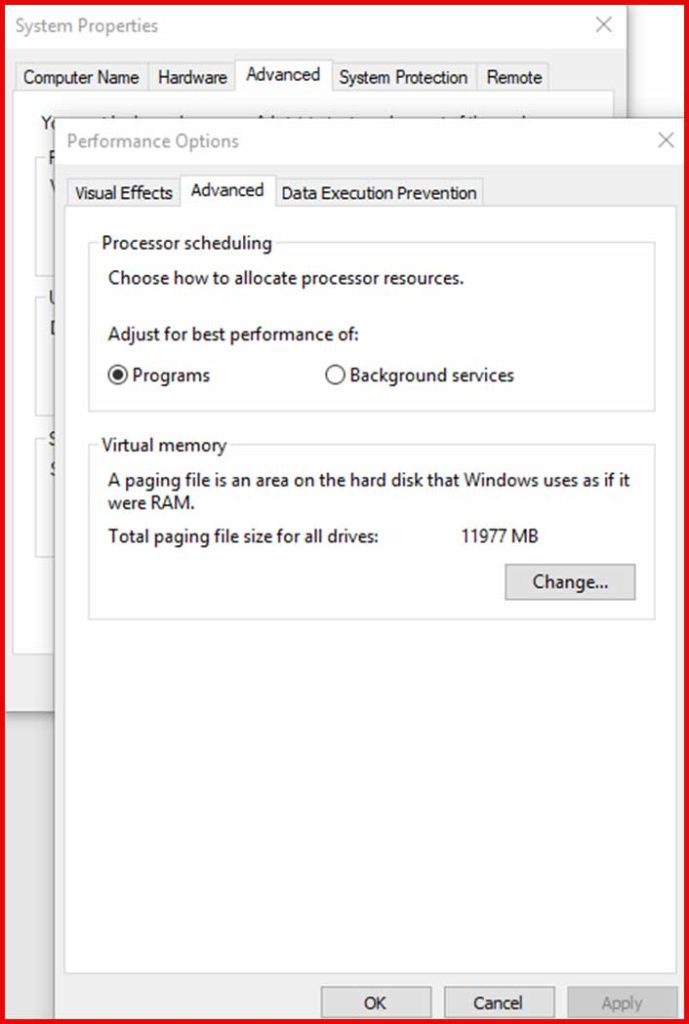
- Under the “Performance” section, click on “Settings.”
- In the Performance Options window, go to the “Advanced” tab.
- Click on “Change” under the Virtual Memory section.
- Uncheck the “Automatically manage paging file size for all drives” option.
- Select the “Custom size” option.
- Set both the initial and maximum size to 8GB (or a value based on your system’s RAM). This ensures a fixed virtual memory size, which can improve performance during installation.
Solution 3: Close Unnecessary Programs
- Close any unnecessary programs running in the background, especially resource-intensive applications.
- Prevent unwanted programs from launching at startup to save memory and system resources. You can do this through the Task Manager or using dedicated software.
Solution 4: Adjust Installation Priority
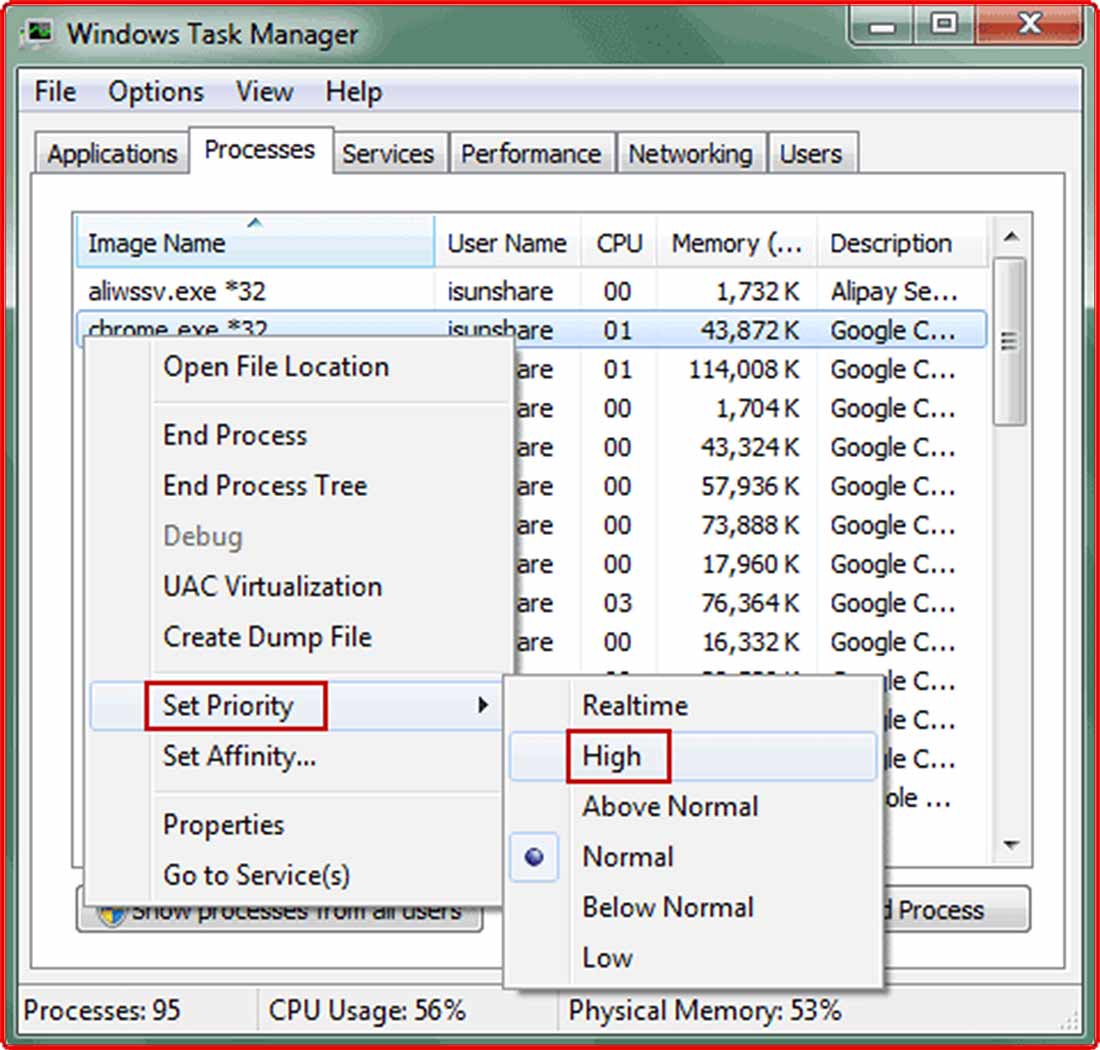
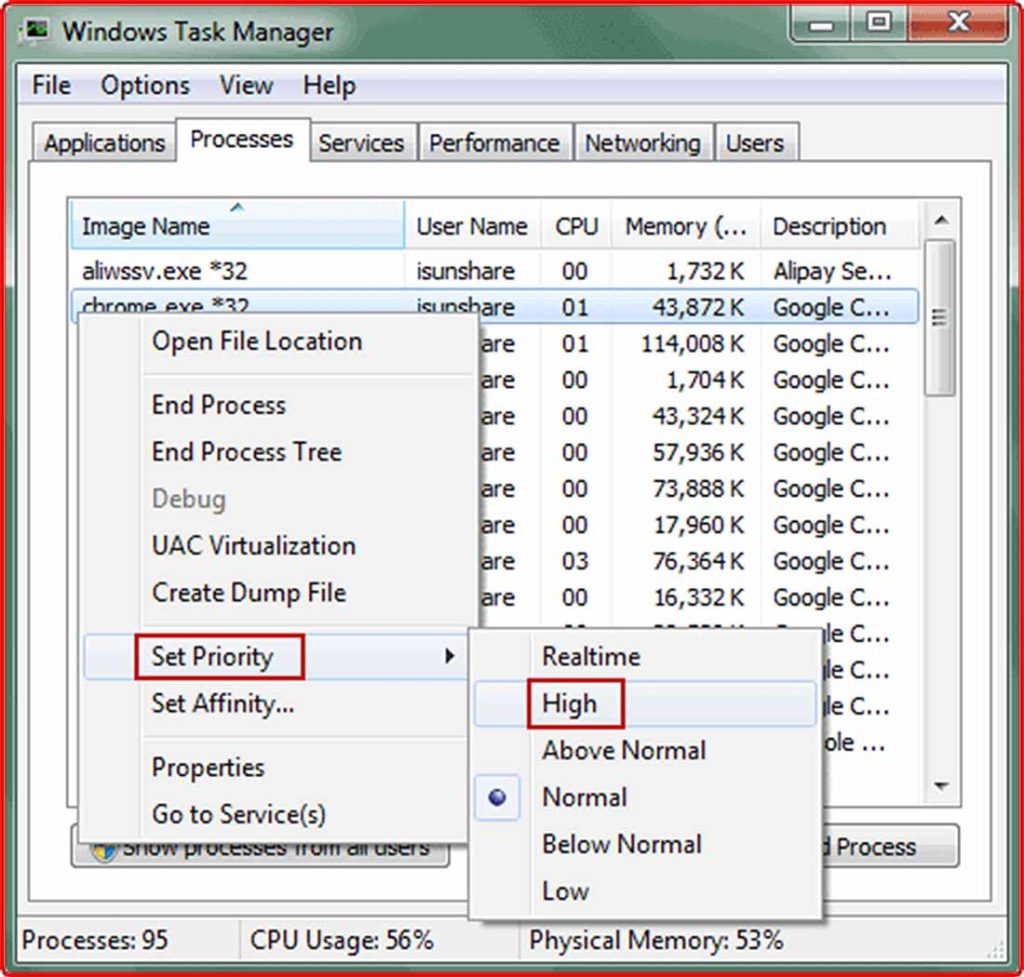
- Open the Task Manager by pressing Ctrl+Shift+Esc or by right-clicking on the taskbar and selecting “Task Manager.”
- In the Task Manager window, go to the “Details” tab.
- Right-click on the .exe file responsible for installing GTA 5 and select “Set Priority.”
- Choose a higher priority level, such as “High,” to allocate more CPU resources to the installation process.
- Additionally, you can change the priority of the .tmp file associated with GTA 5 to ensure smoother installation.
see also: https://www.makeuseof.com/windows-11-set-program-priority/
By following these optimization techniques, you can potentially improve the installation speed of GTA 5 and other repack files. Keep in mind that results may vary depending on your system’s hardware capabilities and overall performance. How do you speed up Fitgirl repack unpacking
yes bro it is totally safe even if you have 8gb of ram. its enough though.
this doesnt efffect the ram ?? or is it safe if i have only 8 gb of ram